All changes since Lumify 0.2.6. This update brings Music Sync, more personal colors, and a refreshed app interface.
New: Music Sync
Make your lights pulse to bass and kick hits from Apple Music or system audio, with smooth attack and release instead of abrupt flashes.
Control Apple Music without leaving Lumify: play or pause, skip to the previous or next track, and seek within a song.
Your music, your colors
Use colors from the current album artwork or choose your own with the embedded color wheel.
Save a custom color to a song when you choose Save. Trying a color does not automatically overwrite your saved song color.
A refreshed interface
The app’s dynamic palette follows your active music colors or lighting theme throughout the window.
Clearer controls and improved contrast make text and settings easier to read.
Improved light control
Improved device power management and screen-to-strip mapping help keep your selected lights working together.
Optional Apple Music song insights
Song sharing is off by default. If you opt in, Lumify shares Apple Music song metadata and aggregate play counts to help prioritize future beat analysis.
Audio is processed locally and is not uploaded. The shared song catalog is not linked to your account or installation, and System Audio is excluded from song reporting.
You can turn sharing off in Settings. Cloud beat training is not enabled in this release.
Get the update
Choose Check for Updates in Lumify, or download the latest version below. Your existing license continues to unlock device output.
Requires macOS 14 or later on an Apple silicon Mac.
Lumify adds section control for the Govee H61E5 COB strip. In Area Settings, set the number of sections to match your strip and assign each section to a screen area.
Easier Gaming Light Strip G1 calibration
The G1 setup now shows all 18 sections around a monitor. Choose one of four orientations using the red and blue light test, then trace the sections from the power cable to the far end to check their order.
We also changed how Lumify maintains the G1 connection to avoid a brief off-and-on flicker during streaming.
Support for shortened strips
If a strip has been cut, choose the number of sections that remain. You can also turn off any section you do not use without changing the assignments of the others. This control works across segmented lights.
PREVIOUS UPDATE
Version 0.2.5
Pick the lights Lumify should use
Lumify no longer scans for lights every time it opens. This prevents it from unexpectedly changing lights that you did not mean to control.
Open Device List, choose Scan, and select only the compatible lights you want Lumify to control. Your selection is remembered. A later scan finds available lights but does not automatically add them to your setup.
New theme library
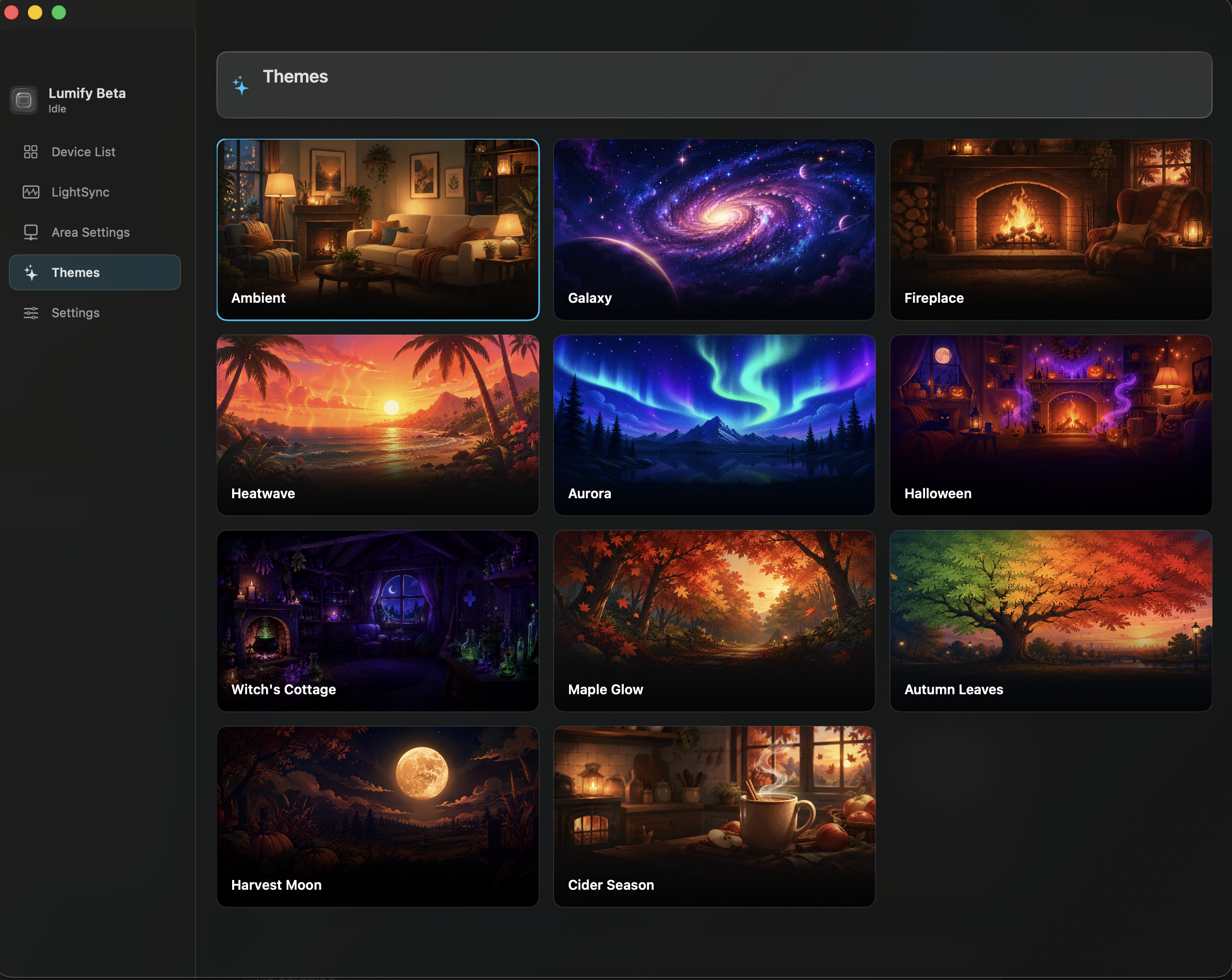
The Themes screen now uses artwork cards in a three-column library. The large preview is gone, so it is easier to see more themes at once and choose the one you want.
Ambient, Galaxy, Fireplace, Heatwave, and Aurora use matching cartoon-style artwork.
New themes include Halloween, Witch's Cottage, Maple Glow, Autumn Leaves, Harvest Moon, and Cider Season.
Theme names appear directly on the artwork for quick recognition.
Lower power use and smoother operation
This update reduces unnecessary work while Lumify is idle or waiting for a user action. It avoids automatic device discovery, limits output to selected lights, and avoids repeatedly rebuilding work that has not changed.
Theme changes now reuse the active lighting session and use a shorter transition, so switching between themes feels immediate instead of laggy.
The goal is simple: responsive lights without making your Mac work harder than necessary.
More vivid ScreenSync colors
Colors taken from your screen now have more saturation, so reds, blues, greens, and other colors look richer on your lights without changing the dark parts of the scene.
Need help setting up your lights?
Follow the step-by-step Google guide for connecting your lights, enabling the right settings, and getting Lumify ready to use.
 Lumify